Files and icons on the desktop
Copy, cut and paste files on the desktop and drop files from the file manager.
On this page
Copy, cut and paste files
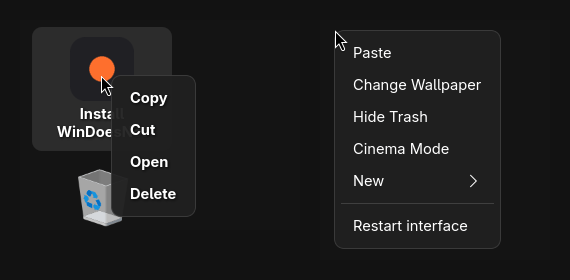
On the desktop you work with files and folders as in the file manager. Click an icon and use:
- Ctrl + C to copy
- Ctrl + X to cut
- Ctrl + V to paste
You find the same in the right-click menu. The clipboard is shared with the file manager: what you copy there can be pasted on the desktop, and the other way round. If the name already exists, WinDoesNot overwrites nothing. The new file is named, for example, "Name (2)". Folders are copied with their contents.
Drag files from the file manager onto the desktop
Drag files or folders from the file manager onto the desktop and let go. They are then in your Desktop folder and show up as icons.
The right-click menu
A right-click on an empty spot opens the menu. Under New you can create a folder, for example; the submenu opens next to it. The menu follows light or dark mode, accent colour and corner radius from the settings. The entry Restart interface in the desktop and taskbar menus reloads the taskbar and desktop if something gets stuck. Your programs stay open.
How the icons look
Under Settings → Desktop you set the icon size, the grid for snapping, the number of lines for long names and whether the trash appears on the desktop. The icon positions are remembered.
As of 9 November 2026 · This help describes version 0.1.0-27. Individual features and labels may change.
← More help topicsReport a problem →