Start menu and taskbar
Pin your favorite programs and change their order.
On this page
Pin apps in the start menu
Open the start menu. Right-click an app to pin or unpin it. You can rearrange pinned apps by dragging and dropping them. The menu closes when you click anywhere inside the start menu.
Weather in the taskbar
Open Settings and choose Taskbar & start menu. Enter your location there first; the weather cannot be switched on without one. The taskbar then shows the current weather, and a click opens the forecast. You set the display position on the same page.
Keep apps in the taskbar
More taskbar icons
Under Settings → Apps, you can show or hide taskbar icons for Docker, Ollama and Nearby. The Docker panel lists containers and offers actions to start and stop them. The Ollama panel lists local models when its service is reachable. Nearby shares files with LocalSend on devices in the same network. The relevant services or programs must be available for these panels to work.
Drag an app from the start menu onto the taskbar. For taskbar entries, the right-click menu also offers Pin to Taskbar or Unpin from Taskbar.
Removing a pinned entry does not delete the program. Only the shortcut disappears from the taskbar.
Right-click a taskbar icon for more actions for that app. The menu is anchored to the icon and closes when you click outside it.
Change the layout
Open the settings and choose Taskbar & start menu. The settings there offer more ways to adapt the interface to the way you work. Try one change first and look at the result.
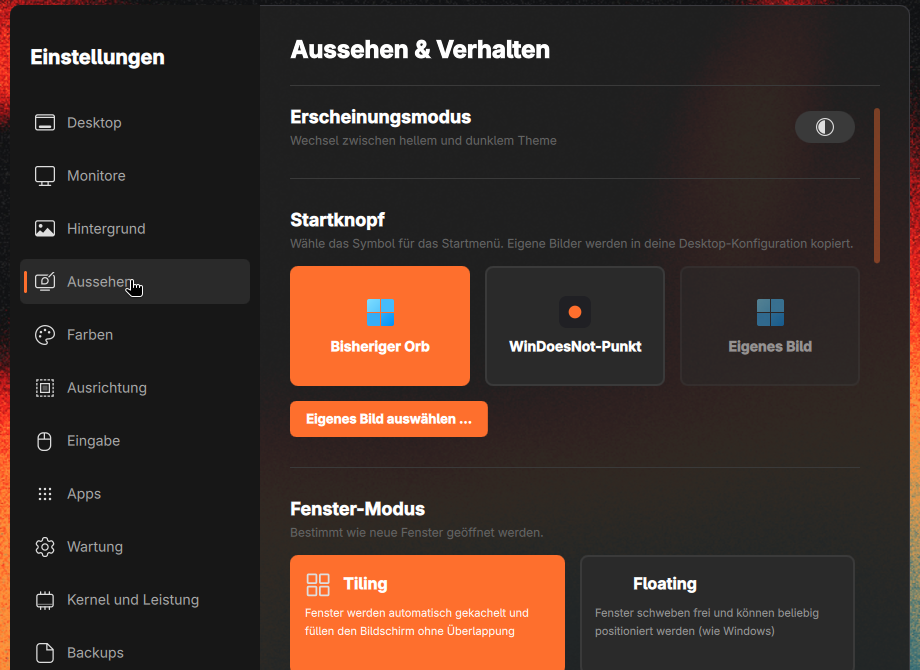
Choose the Start button
Under Settings → Appearance, choose the familiar Orb or the WinDoesNot dot. You can also select your own image.
As of 9 November 2026 · This help describes version 0.1.0-27. Individual features and labels may change.
← More help topicsReport a problem →