Move from Windows
Bring your Windows data along in the installer: what comes with you, what does not, and why Windows stays unchanged.
On this page
Your Windows comes along
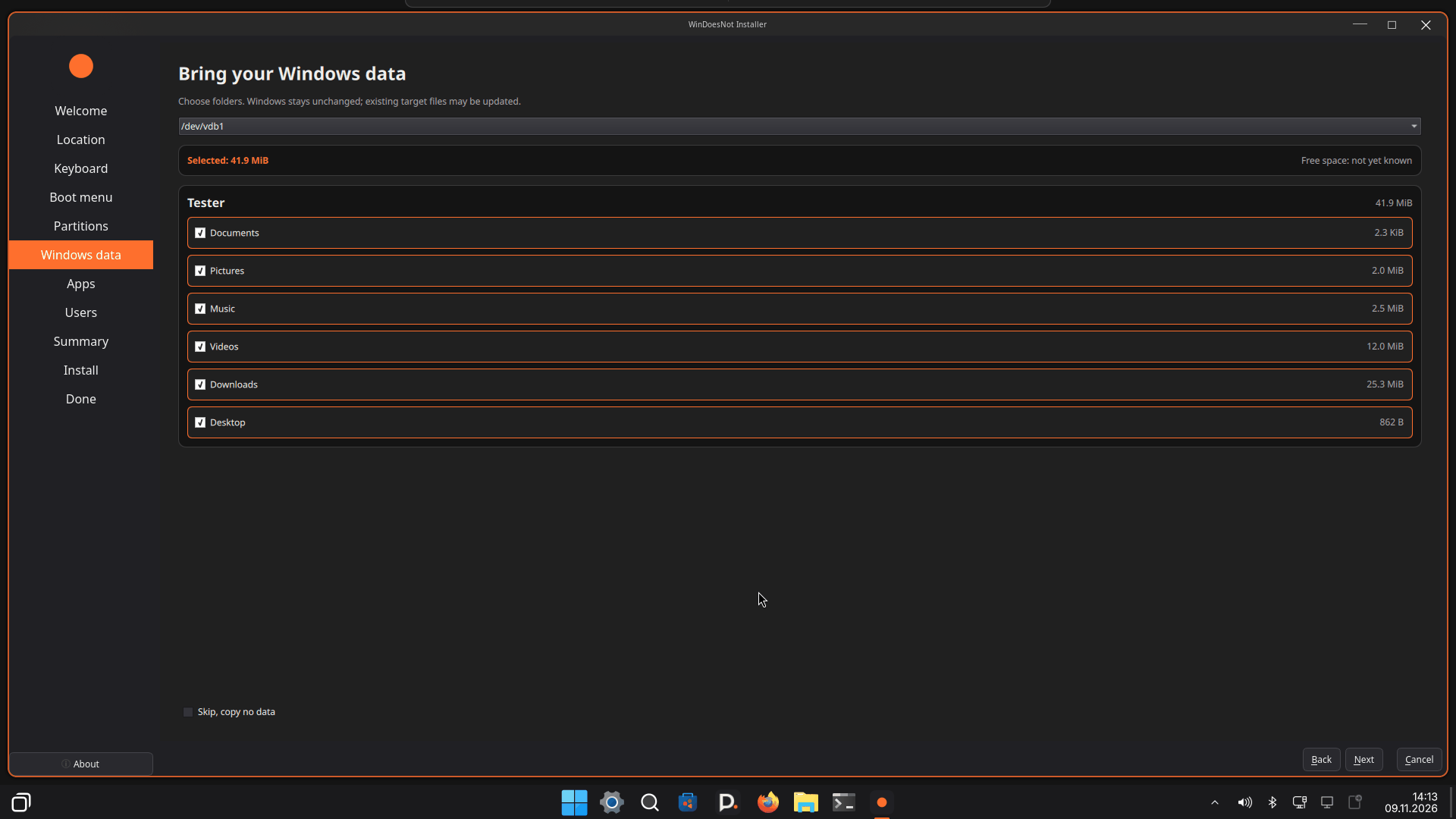
When the installer finds a Windows partition, you can pick your data there and bring it into your new account. You do not have to collect your files by hand.
How it works
- In the installer, open the Windows data page. It appears when a Windows partition is detected.
- You see the folders with their sizes: Documents, Pictures, Music, Videos, Downloads and Desktop. Tick what should come along.
- The summary before installation shows your choice and the total size. Copying only starts after that.
Files from your Windows desktop end up in the Desktop folder of the new account and appear on your desktop. The other folders go into the matching folders in your home directory, for example Documents and Pictures. You can also pick a Firefox profile with bookmarks. Firefox must be closed in Windows for that.
Windows stays unchanged
The Windows partition is only mounted for reading. WinDoesNot copies files from it but does not change or delete anything there. Still, keep an independent backup of important data before you change partitions.
Passwords
Passwords are not transferred. This includes passwords saved in Chrome, Edge and Chromium. They can only be exported in Windows, for example in the browser's settings. You can import that export into your new browser or password manager later. Keep the export file safe and delete it afterwards, because it contains plain text.
The Windows program "WinDoesNot Setup"
A small separate program for Windows, "WinDoesNot Setup", is being built for the move. It is meant to prepare the move and help with exporting passwords and Wi-Fi networks. It is still in progress and not available yet. The installer also works without it.
What does not come along automatically
- Passwords and browser profiles of Chrome, Edge and Chromium: see above.
- OneDrive: Files that only exist in the cloud are not on the Windows partition. Download them in Windows first.
- BitLocker: For a locked partition you need the password or the 48-digit recovery key. It is often in your Microsoft account or on a printout.
- Fast startup and hibernation: Shut Windows down completely. Otherwise the partition may be locked and cannot be read.
If single files are missing
If a file cannot be copied, the installer names the path and the reason. A copy problem does not stop the installation.
See also: The ISO and installation
As of 9 November 2026 · This help describes version 0.1.0-27. Individual features and labels may change.
← More help topicsReport a problem →