The ISO: a complete system
Who the ISO is for and how the installation works.
On this page
What is an ISO?
The ISO is an image of the complete WinDoesNot live system. You boot a desktop of its own from it and can open the installer from there. It is the intended way in if you want to use the whole system.
Can I download it yet?
The current version, 0.1.0-27, is available. The download page provides the ISO, its size and SHA256 checksum. Check the checksum before booting the downloaded image.
How do I write the ISO to a USB stick? The guide covers Windows, Linux and macOS.
Installing offline or online
The boot menu of the live ISO is easy to read and shows the version. There you choose how to install. Offline needs no internet: everything comes from the medium. Online needs an internet connection and downloads the same verified packages. Both paths result in the same system.
How the installation works
Install beside an existing system
If you want to keep Windows or Linux, choose Install alongside in the partitioning step when it is offered. Use the slider to choose how much space WinDoesNot gets. The option appears only when a suitable partition can be shrunk and enough space can be made available. Do not choose Erase disk if you want to keep the existing system. Back up important data before changing partitions. If BitLocker is enabled, have its recovery key ready.
- Download the released ISO and compare it with the published checksum.
- Boot the live system on your computer or first in a VM.
- Open Install WinDoesNot on the live desktop.
- Choose language and keyboard, then the bootloader: GRUB, Limine, rEFInd or systemd-boot. Without prior knowledge, the suggestion is a good choice. GRUB, Limine and rEFInd get a WinDoesNot theme that you can turn off later.
- Choose the target. The installation changes the selected drive; back up important data independently first. Btrfs is suggested as the file system because it enables restore points.
- On the Programs page, pick a profile and add or remove programs. Web apps, ArtCraft and the shell are on offer there too (details).
- If there is a Windows partition, the Windows data page lets you choose folders to bring over.
- Create your user account, check the summary and install.
- Restart when it is done and sign in.
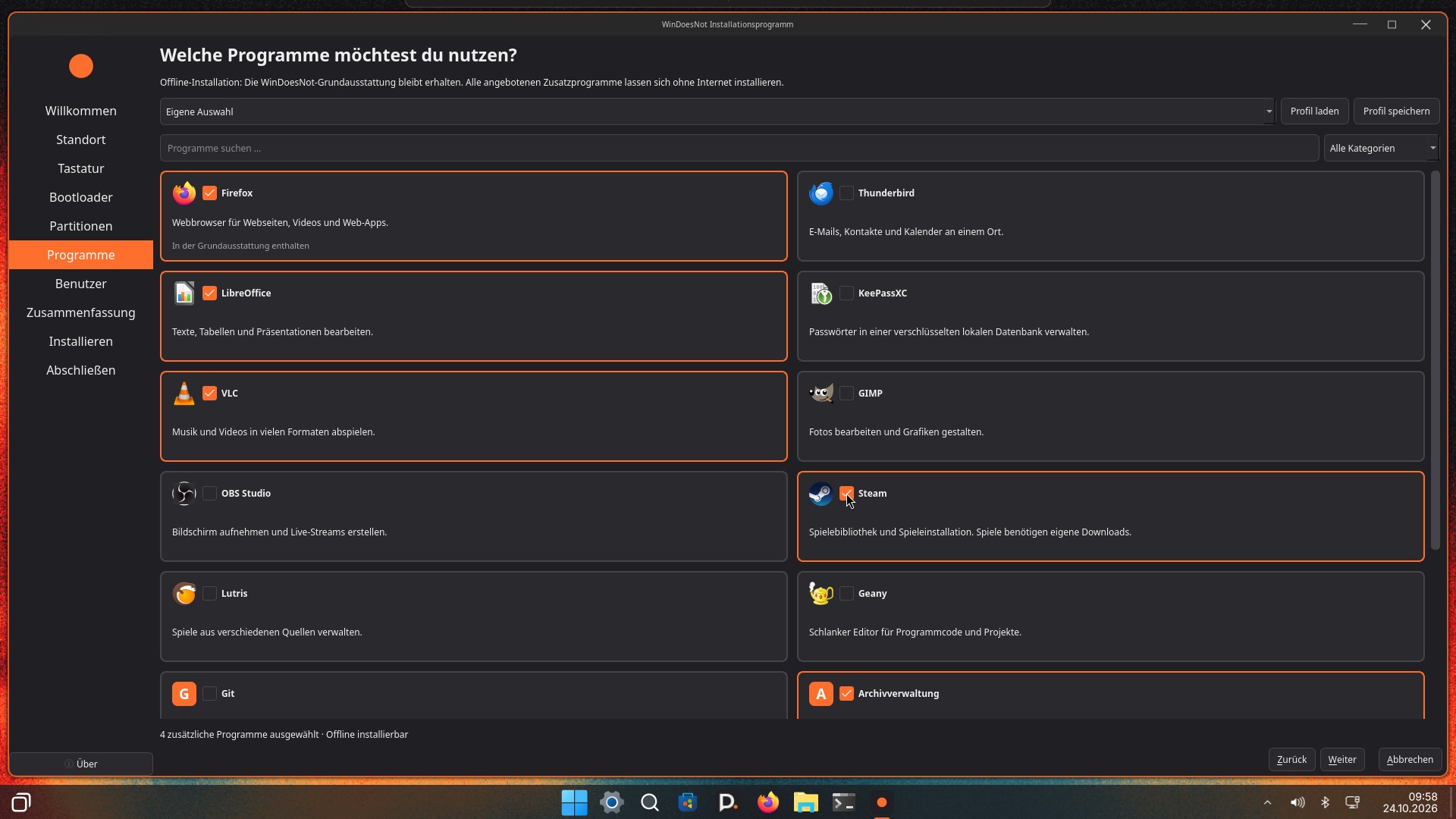
What the installer sets up for you
During installation, the step Set up the system for your computer shows what was detected:
- Processor: if it supports newer instruction sets, optimized CachyOS packages are enabled (x86-64-v3, v4 or AMD Zen 4 and 5).
- Graphics: drivers for NVIDIA, AMD, Intel or a virtual machine are set up, even offline and including the 32-bit drivers games need. Older NVIDIA cards get their driver after the first update.
- Download servers: online, the fastest servers are chosen right away; offline, on the first internet connection.
After your first sign-in, a welcome window sums up what was set up.
Updates
If a system update stops because of Hyprland, gcc-libs or windoesnot-plugins, see System update fails: Hyprland or gcc-libs.
What is not covered yet
The installation paths were tested in UEFI VMs. There is a separate guide to writing the ISO to a USB stick. Secure Boot has not been verified and real hardware tests are still pending. In VMware Workstation and VirtualBox the ISO starts slowly and with graphics errors. Details are under Known limitations.
Apps and language
In the installer you can also choose Google Chrome, Sublime Text and AI tools. They download after setup once you are online. Web apps such as Netflix and YouTube get their own launchers. The About WinDoesNot page explains the project. After your first sign-in, the welcome page shows what was set up. Standard folders such as Documents and Pictures follow the system language, even after you change it.
As of 9 November 2026 · This help describes version 0.1.0-27. Individual features and labels may change.
← More help topicsReport a problem →